Discovery Generator
Contents
Getting started
Overview
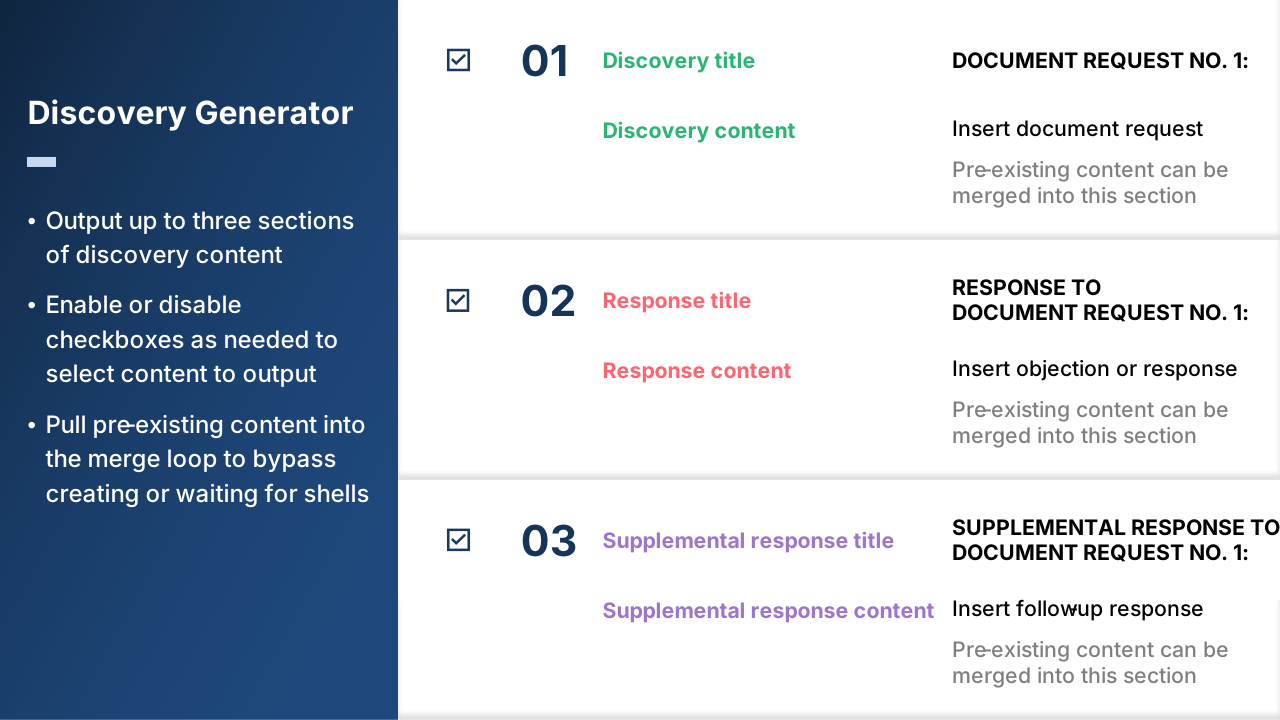
Discovery Generator is a utility in the Legal Productivity Suite for Microsoft Word by Craftware Solutions LLC. It outputs discovery content using a loop consisting of up to three sections: (1) discovery > (2) response > (3) supplemental response. Each of these three sections, which can be included or omitted as needed, contain options for title and text content. The utility can also convert pre-existing lists and content in tables into any of the three content sections.
This utility is available as a complimentary, standalone application in Microsoft Marketplace under the title of Discovery Generator for Litigation or directly within Microsoft Word (Home tab > Add-ins > More Add-ins/Store).
 Discovery Generator at a glance
Use case
Whether you're an attorney or support staff, Discovery Generator is useful if you process a lot of discovery requests. You have complete control over the workflow with options that allow you to specify which and how titles appear and whether content is on the same line as the title or a separate paragraph.
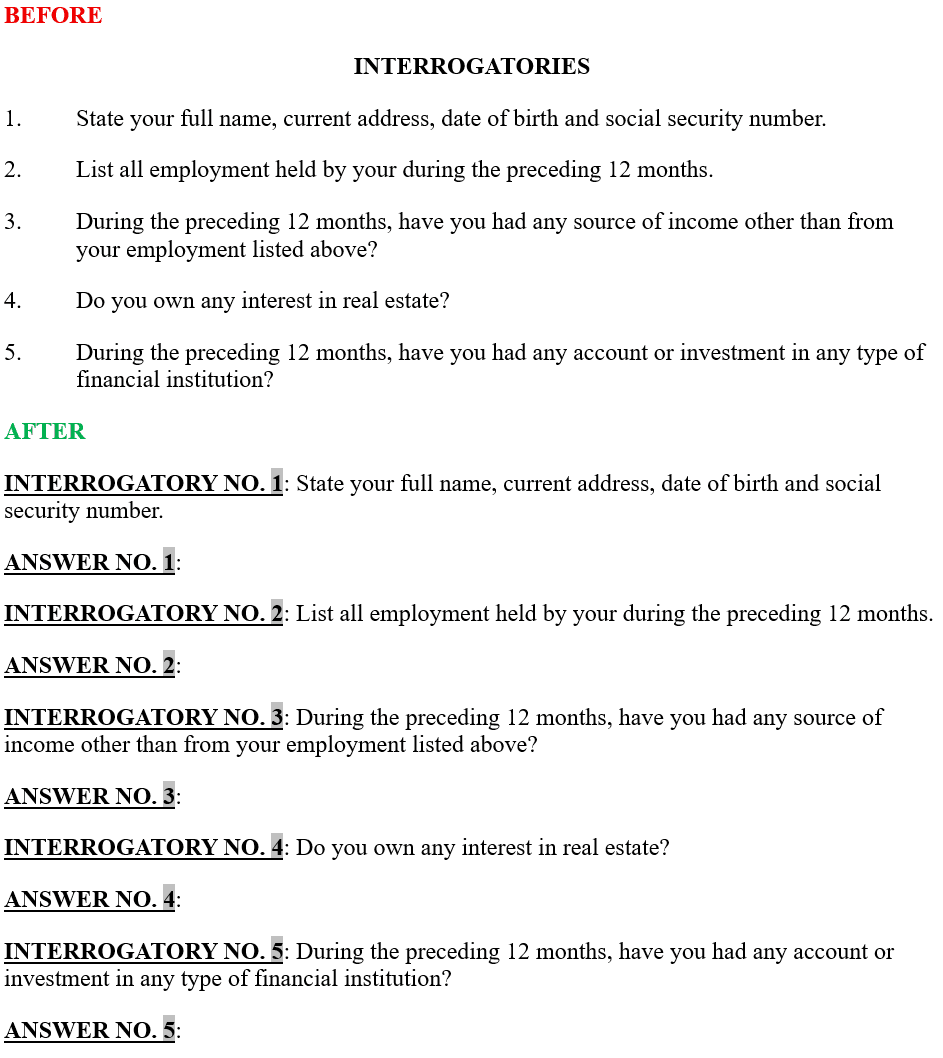
Convert lists to question and answer format
Whether you're pulling requests from a prior filing or your firm-designated repository, you can simply list each request as a separate paragraph. Likewise, you can quickly respond to discovery by taking the requests sent by opposing counsel and pasting them as paragraphs. In both instances, Discovery Generator will perform the heavy lifting of taking the content from the lists and merging them into question and answer format (or only question format if you're propounding discovery).
Convert tables to question and answer format
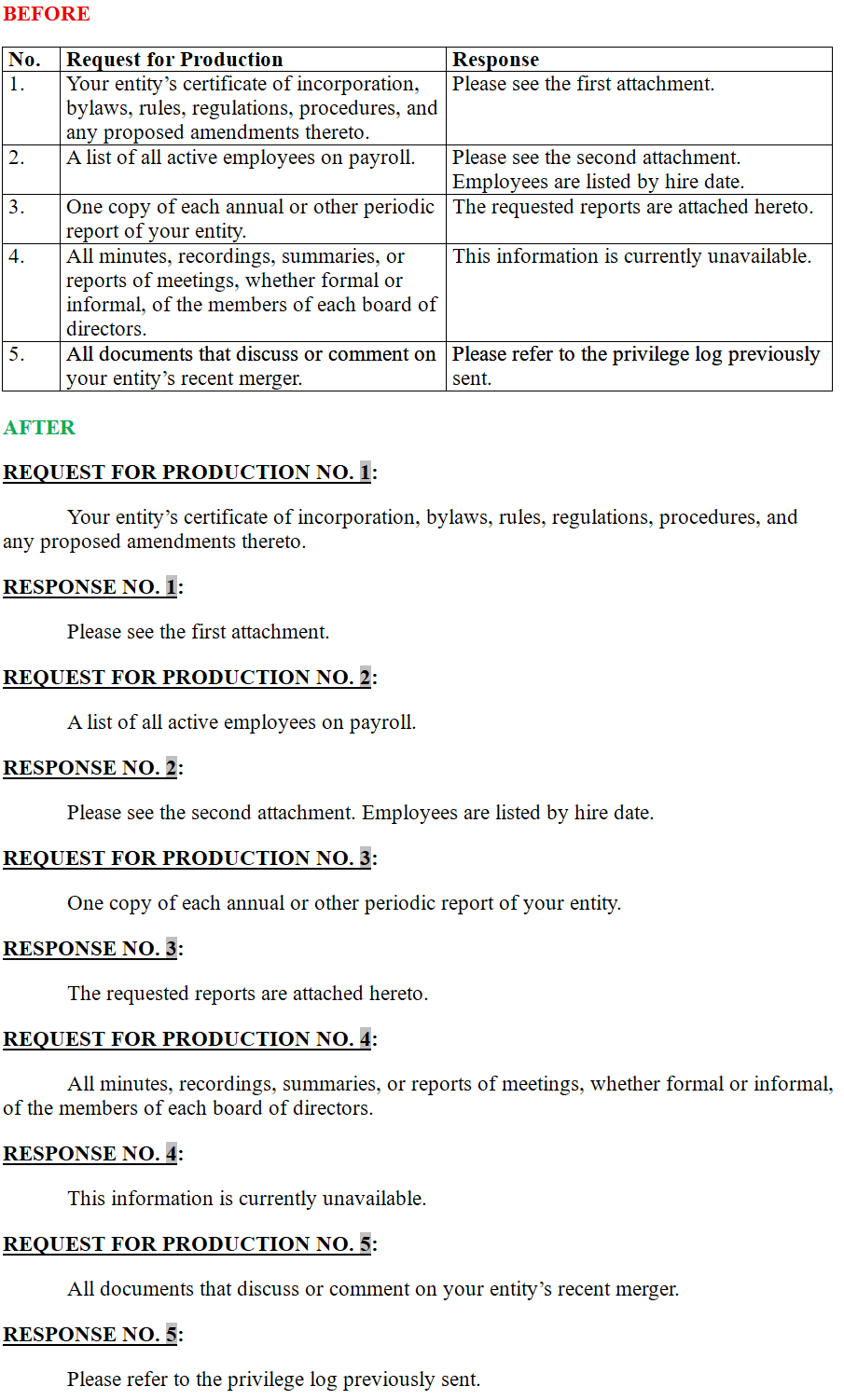
If your requests or responses are in a table, Discovery Generator can convert the content to question and answer format.
Support
If you require support, please don't hesitate to contact us.
Settings
Operations
General options for the Utility tab and processing performed.
Show instructions on Utility tab
Toggles the display of instructions on the Utility tab. Hiding the instructions allows for more room to view selections in the task pane.
Show descriptions on Utility tab
Shows or hides descriptions on the Utility tab. Enable or disable as desired once familiarity with the application is obtained.
Show descriptions on Settings tab
Shows or hides descriptions on the Settings tab at your convenience. We bring these instructions into the application so settings and options are clear.
Title and content options
The settings below affect the title and content sections on the Utility tab.
Default loop count
Sets the default number of loops if content is not collected from the discovery, response or supplemental response text section(s).
Reset paragraph style lists
Resets the style lists for all title and content sections. Press this button if a style is created after the utility is launched so it will be reflected in the lists of styles.
Title options
The settings below only affect the discovery, response and supplemental response title sections on the Utility tab.
Text case appearance
Sets the distinction for the capitalization of title. Options are uppercase, title case, lowercase and "do not modify." Character formatting (e.g., bold, underline, small caps, etc.) can be applied through the style.
Ending text
Provides options for text that will be displayed at the end of the title. Options are colon, period, en dash, em dash and none.
Content options
The setting below only affects the discovery, response and supplemental response content sections on the Utility tab.
Clear collections
Clears all of the content stored from the document selection and table column collection process. This content is removed automatically when the Legal Productivity Suite for Microsoft Word is closed or started and is never transmitted to a database.
Title sections
Refers to the discovery, response and supplemental response title sections on the Utility tab.
Title text
Specifies the text content that appears as the title. This text content can be set (i) through the selected style or (ii) by selecting Specify.
Incorporated in selected style
Defaults to the content and/or numbering in the style selected. Use this option if your firm has approved styles reserved for discovery (e.g., Interrogatory 1, Interrogatory 2, etc.). Discovery Generator will hide the options below from the task pane.
Specify
Allows for a selection to be entered in the Specify [section] title menu that appears. If none of the selections from the menu are relevant to your filing, a new one can be typed.
Numbering
Sets the numbering that appears after the title content.
Static numbering
Inserts numbering as regular text. This numbering will not update if an entry is removed or added after the workflow is completed.
SEQ fields
Inserts numbering using Microsoft Word's SEQ field. If an entry is removed or added after the workflow is completed, selecting the document in its entirety and pressing the F9 key will update the SEQ fields (i.e., the numbering) to reflect the modified content.
Starting number
Allows for a numerical value to be entered as the start of the numbering sequence. Use this option when propounding or responding to a discovery set after the first that doesn't start with one.
Direct formatting attribute(s) to apply
Allows for the selection of character formatting attributes to apply to the current section title. Uncheck this option if you intend to control formatting through a style.
Content sections
Refers to the discovery, response and supplemental response content sections on the Utility tab.
Text content
Provides options for content to be placed after its respective title, whether it's a blank paragraph or pre-existing content.
Content collection
Collects pre-existing content to be output after the discovery, response or supplemental response title. Content collection for each of the three content sections is managed separately.
Document selection
Collects content as a selection of paragraphs. To engage, select the paragraphs in the document and press the button.
Table column
Collects content from the table column specified by the column and start row selections. To engage, place your cursor in the table and press the button. If needed, content can be collected from multiple tables for the discovery, response or supplemental response content sections.
Sample content collection document to assist with getting started (the download button is in the top right corner)
Styles
A paragraph style selection is required for each section selected for the workflow. The Paragraph style menus in each section contain all the styles in the document (sans table styles) and operate independently of each other.
Title sections
Allows for granular control over the content and character formatting for the title.
Title content
In addition to specifying the title content (e.g., interrogatory, document request, etc.) through Discovery Generator, you can also use your own content that may be stored in outline styles created by your firm (e.g., RFP_L1, RFP_L2, etc.).
Character formatting
Used in conjunction with the Text case appearance setting on the Settings tab, titles can be displayed in a variety of ways (e.g., with small caps, underlining, bold, italics, etc.).
Content sections
Provides flexibility for the styling of the text paragraph(s). Since style selection is separate between each section, if formatting should differ between sections (e.g., if the discovery and the response text should be single-spaced and double-spaced, respectively), separate styles can be selected to control the formatting for each section as needed (e.g., "Body Text First Indent" for the discovery section and "Body Text First Indent 2" for the response section).
FAQs
How many loops will Discovery Generator make?
The number of loops Discovery Generator makes will depend on whether or not any content is collected.