The Table Tool (version 3)
Contents
Getting started
Overview
The Table Tool (v3) is a module in the Table Tools utility of the Legal Productivity Suite for Microsoft Word by Craftware Solutions LLC. It automates the conversion and formatting of financial tables. It enables you to produce corruption-free, visually appealing tables in a fraction of the time compared to manual processing.
Get a feel for the Table Tool's workflow by watching either of the demonstration videos below. The first video demonstrates the conversion and formatting of 11 financial tables using the Table Tool (v3). The second video demonstrates the workflow using a prior version of the Table Tool (ver. 2.1.0). Download the sample document afterward to become accustomed to the workflow and start your table formatting journey.
Sample document to assist with getting started (the download button is in the top right corner)
Use case
This module converts and formats SEC/EDGAR tables, financial tables from .pdf conversions and tables originating from MS Excel.
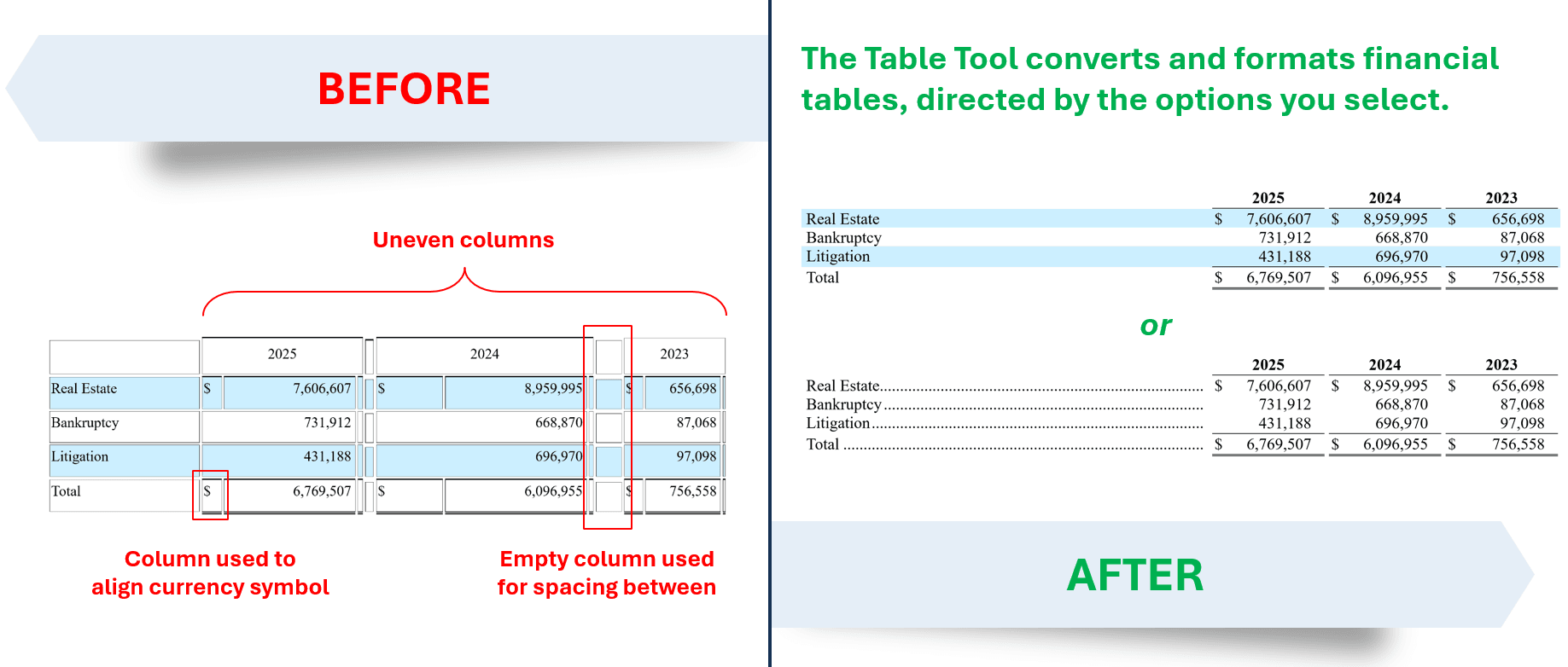 Before and after conversion and formatting of a financial table using The Table Tool (v3)
Interface
The interface simplifies the workflow into three sections: (1) Cleanup, (2) Structure and (3) Financial. Since table structures and formatting vary considerably (e.g., different column widths, whether or not row shading will be applied, etc.), the table options listed in each of these three sections can be applied in three different ways.
Single option processing
To process a single option, press the green button with the arrow icon that's located to the right of the label. Pressing this button will process the option regardless if the option is checked. Single option processing is useful when you need to make a single change (especially without executing other options that may be checked in the module).
Section processing
To process all checked options in one of the three sections, press the green button with the arrow icon that's located to the right of the section header. This button will be disabled if the section is not checked.
Processing all options
Pressing the Process checked options button at the bottom of the module will execute checked options in checked sections.
Support
If you require support, please don't hesitate to contact us.
Cleanup
Assists in creating an entirely new table for formatting.
Convert table
Transfers table content to a new table structure underneath the current table. Empty columns will attempt to be deleted. The original table will remain intact.
Preserve line breaks
Maintains soft and hard returns during the conversion process.
Duplicate table
Copies the table. The new table appears under the original table separated by an empty paragraph. Content on your clipboard, if any, remains available to you.
Delete empty rows
Deletes all empty rows in the table. This feature will not work in tables with vertically merged cells. As a workaround, split the table where the cells are vertically merged and run the procedure on the portion of the table without the vertically merged cells. Reconnect the table afterward.
Cells with only white space are empty
Specifies whether or not cells containing only a space, tab, hard or soft return, etc. should be considered empty.
Delete empty columns
Deletes all empty columns in the table. This feature will not work in tables with mixed cell widths or cells that have been merged across columns.
Cells with only white space are empty
Specifies whether or not cells containing only a space, tab, hard or soft return, etc. should be considered empty.
Remove table borders
Removes all cell borders from the table. Borders applied to paragraphs and text, if any, remain.
Structure
Consists of frequently used table properties when formatting financial tables. You can work efficiently by quickly accessing options at the same time you edit your document.
Preferred width
Changes the table width to the specified numerical value expressed as a percentage of the page (sans margins) or in inches. Press the percentage or inch buttons to the right to toggle between fields.
Indent from left (")
Indents the table to the specified numerical value.
Alignment
Aligns the table according to the option selected in the accompanying drop-down list. Available options are listed below. These options may not be readily apparent when the table has a width that's the equivalent of the page (sans margins).
Left
Aligns the table to the left of the page margin.
Center
Centers the table between the page margins.
Right
Aligns the table to the right of the page margin.
Column spacing
Formats the width of the table columns. Available options are listed below.
Even width
Distributes the width of all table columns evenly.
AutoFit to content
Resizes the table depending on whether cells contain content. The column widths are distributed evenly if the cells are empty. Otherwise, the column width is set so that information fits on a line (if possible). Tab stops, if any, are removed.
Ratio
Distributes the width of all table columns in a ratio where the first column is wider than the columns to the right. The ratio is applied to the remaining columns according to their current width (i.e., if the columns to the right are uneven in width, the ratio will be applied in the same uneven manner).
Specify
Distributes the width of the table columns to the right of the first column as indicated by the "Specify columns (")" field to the right. This numerical input is not visible when either of the previous column spacing options are selected. In instances when this option is unable to format the table (e.g., in tables with merged columns), the Table Tool will automatically default to the "Ratio" option above and inform you of the reason in the notification area.
Cell margins
Changes the cell margins for the table.
Don't resize for contents
Deselects MS Word's option to automatically resize the table to fit its contents. This feature prevents the column width from changing automatically as content is typed.
Prevent row breakage
Prevents rows from breaking across pages (e.g., a two line cell will begin on the next page instead of breaking in the middle).
Financial
Automates tedious tasks involved with formatting tables found in filings, financial statements, prospectuses, offering memorandums, etc.
Specify text column
The ability to indicate the text column in a table is a foundational piece of the equation for several features. Further explained in their respective sections, it provides you with the flexibility to specify: (i) which column tabs are placed into; (ii) the column that text indents are applied to; (iii) the cells affected by the data alignment feature; and (iv) where cell bottom borders are placed. Leaving the text column as "1" is sufficient for most tables.
Header row(s)
Applies MS Word's heading row feature to the number of rows specified in the accompanying drop-down list. These header rows are repeated if the table spans more than one page. Formatting options applicable to header rows are listed below.
Bold
Manually applies bold font formatting to the content in the header row(s).
Keep with next
Utilizes MS Word's "Keep with next" option to ensure that the header rows won't become orphans if the table begins at the bottom of a page.
Font size
Sets the font size for content in the header row(s).
Underline
Applies underline to the cell content via the paragraph option in MS Word's Borders and Shading dialog box (i.e., the underline applied is not a character underline via MS Word's Font dialog box).
Omit underlining in the text column(s) and/or the last header row using the accompanying checkboxes.
Alignment
Aligns content of the header row cell(s) according to the column it's in.
Tabs & leaders
Inserts tabs and right tab stops in the specified text column. Tabs can be omitted in cells by checking any of the checkbox options listed below. This feature takes into account the column width when determining the right tab stop position. Execute this feature again if the column width changes.
Header row(s)
Tabs are omitted in all rows designated as header rows either through the Table Tool or manually through MS Word's native feature.
Cells ending with colons
Tabs are omitted in cells with content that ends in a colon.
Blank cells
Tabs are omitted in cells without any content.
Cells with bold font formatting
Tabs are omitted in cells that are all bold.
Cells with all capitalized letters
Tabs are omitted in cells with all capitalized letters.
Text column indents
Applies indents you select in the specified text column. Indents are applied beginning in the first cell after the last header row, if applicable.
Hanging
Hanging indents are mandatory.
Left
Check this option to apply a left indentation.
Right
Check this option to apply a right indentation.
As shown below, indents provide several aesthetic benefits for cells with content that spans more than one line.
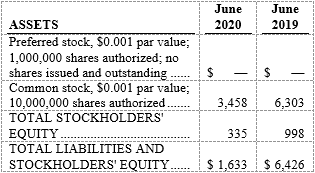 Before indentations
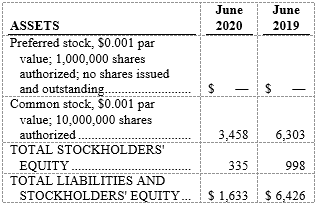 After hanging and right indentations of 0.1"
Align data figures
Aligns content in data cells (i.e., cells that are in rows after the header row(s), if any, and to the right of the specified text column). Available alignment options are listed below.
Decimal
The Table Tool determines how the data figures should be aligned when this option is selected. This features takes into account the column width, number of digits in the data figures and font size. Execute this option again if any of these factors change. Vertical cell alignment is changed to bottom.
Specify
Provide a specific decimal tab stop position in the accompanying "Specify decimal tab (")" field to the right. The specify numerical input is not visible when any of the other data alignment options are selected. Vertical cell alignment is changed to bottom.
Left
Aligns content in data cells using the left paragraph alignment option. Tab stops in the data cells are deleted during this process. Vertical cell alignment is unchanged.
Center
Aligns content in data cells using the centered paragraph alignment option. Tab stops in the data cells are deleted during this process. Vertical cell alignment is unchanged.
Right
Aligns content in data cells using the right paragraph alignment option. Tab stops in the data cells are deleted during this process. Vertical cell alignment is unchanged.
Justify
Aligns content in data cells using the justified paragraph alignment option. Tab stops in the data cells are deleted during this process. Vertical cell alignment is unchanged.
Bottom borders
Apply or remove bottom borders in the last four (4) rows of the table specified in the accompanying drop-down lists. Borders will be applied in cells to the right of the specified text column.
Last Row
Affects the last row of the table.
Penultimate
Affects the second to last row of the table.
Antepenultimate
Affects the third to last row of the table.
Preantepenultimate
Affects the fourth to last row of the table.
Row shading
Shade alternating or header rows by using the accompanying menu and specifying either RGB or hex color values. When applying shading to alternate rows, indicate where the shading should begin by selecting an option from the "Starting row" menu.
Remove shading by selecting from one of the three options for removal (i.e., clear shading from (i) header, (ii) nonheader or (iii) all table rows).
FAQs
Is Table Tools and the Table Tool the same utility?
No, the Table Tool, formerly a standalone application, is now one of many table-related modules in the Table Tools utility in the Legal Productivity Suite for Microsoft Word.
With a slimmer, simplified workflow, the latest version of the Table Tool focuses on processes to efficiently tackle the conversion and formatting of financial tables.
There are a lot of options in the module. What's the quickest way to get started?
The number of options in the Table Tool (v3) reflect the many details involved when working with financial tables. The Select frequently used conversion options button at the bottom of the module checks the majority of options. As you move between tables, you will quickly develop a familiarity with the options you use most and your preferred method of applying changes (e.g., applying options by sections, all at once, a mixture, etc.).
The key is to use the module in the manner that works for you. Some users prefer to apply the same set of options to all tables and make necessary adjustments afterward. Others prefer to review the options for each individual table and apply only the ones needed. Both methods are quicker than attempting the process manually!
Will the options in the Table Tool (v3) work on nonfinancial tables?
Absolutely! Although we geared this module toward working with SEC/EDGAR tables (see latest 10-K filings for sample tables), financial tables from .pdf conversions and tables originating from MS Excel, these same options can be applied to any Microsoft Word table. Hence, some of these same options also appear in our Table and cell properties module.
Why does the font of the converted table change?
The font of the converted table changes to the default font in your document. This is because the conversion process involves copying and pasting the content into a new table structure, which does not retain the original font formatting. The default font is determined by the Normal style in your Microsoft Word document. You can change the default font by modifying the Normal style, which will affect all text that uses this style, including the converted tables.