Search and highlight
Contents
Getting started
Overview
Search and highlight is a module in the Toolkit utility of the Legal Productivity Suite for Microsoft Word by Craftware Solutions LLC. It searches simultaneously for as much content as you provide and generates a result table afterward to facilitate your review.
Use case
This module is useful when reviewing defined terms in a contract. By exporting the defined terms from the definitions section of your agreement, you can paste them into the module so that all terms are searched for and highlighted. If your document does not include a dedicated definitions section, you can still track and manage defined terms efficiently. As you read through your document, copy each defined term you encounter and paste it into the module. This process allows you to build a list of defined terms on the go, ensuring none are missed during your review.
As you continue reviewing your document, if you come across a capitalized term that is not highlighted by the module, this indicates that the term has not yet been defined. By identifying these terms, you can ensure that all necessary definitions are included and that your document remains clear and consistent for all readers.
The first column of the search results shows the number of times each search item was found. Sorting the first column in ascending order (by clicking on the magnifying glass in the header) will also assist in determining if defined terms are only used where defined by bringing all search items with only one found instance to the top of the search results.
Support
If you require support, please don't hesitate to contact us.
Workflow
Find content
Because find what was already taken.
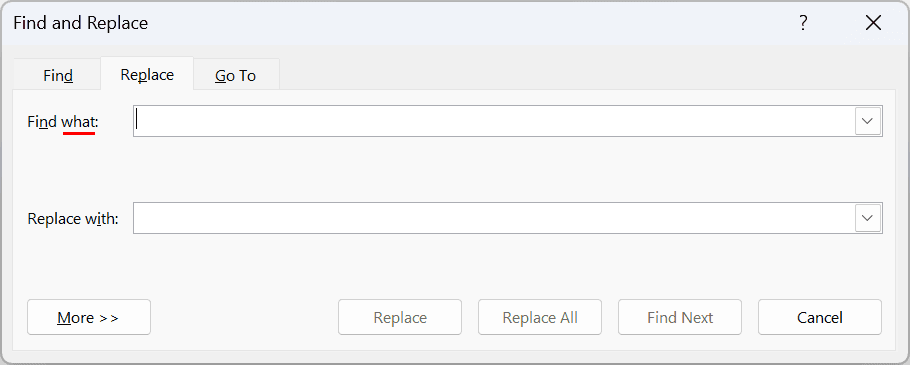 Microsoft Word's Find and Replace dialog
Search items
Specifies the content to be searched throughout the body of the document. Multiple items can be searched for during the same workflow by separating subsequent items with either a new line or semicolon.
Workflow options
Allows you to specify how your search is performed.
Match case
Toggles the case sensitivity for how searches are performed.
Find whole words only
Toggles whether search items should be standalone words.
Use wildcards
Enables wildcard characters for the search performed.
Highlighting for found search items
Apply actual highlighting. Applies actual Microsoft Word highlighting to the found search items.
Apply cosmetic highlighting. Applies a subtle, light blue highlight to found search items. This cosmetic highlight will not print or be saved (i.e., it's not the conventional highlighting on the Home tab). To remove the cosmetic highlighting applied in the document press the Remove cosmetic highlighting button at the bottom of the module.
Do not apply any highlighting. Forgoes the highlighting aspect of the workflow. You can toggle this option off if you're solely interested in reviewing the search results generated after processing.
First instance only
Specifies whether the first or all instances of found search items should be highlighted.
Highlight color
Sets the highlight color to apply to found search items. This option is only viewable in the task pane when Highlighting for found search items is set to Apply actual highlighting.
Search results
After processing has completed, the Search results tab will become enabled, allowing you to click on it. It lists the number of times each search item appears and informs you if the search result was not found by changing the color of the row to red.
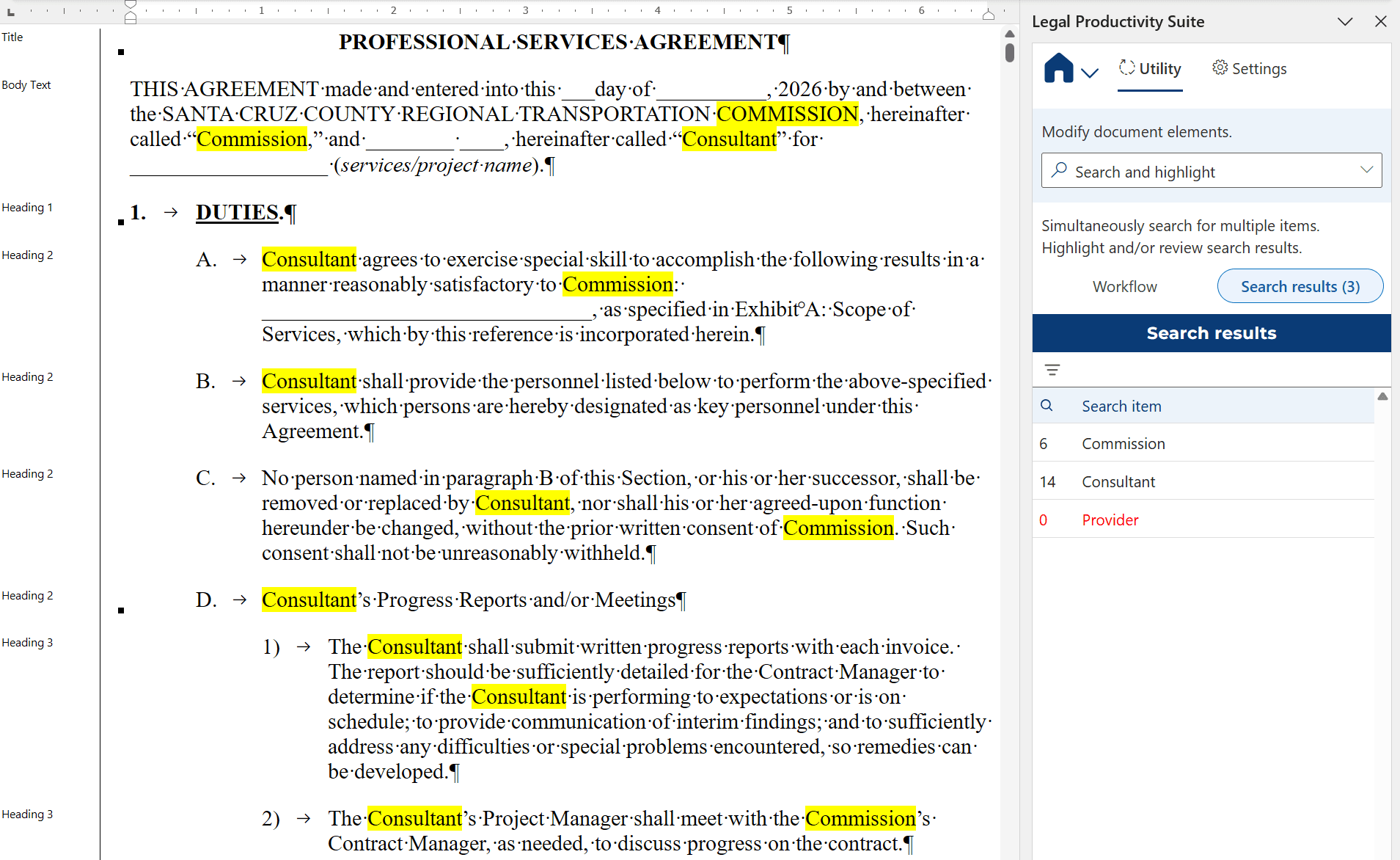 Search results tab